
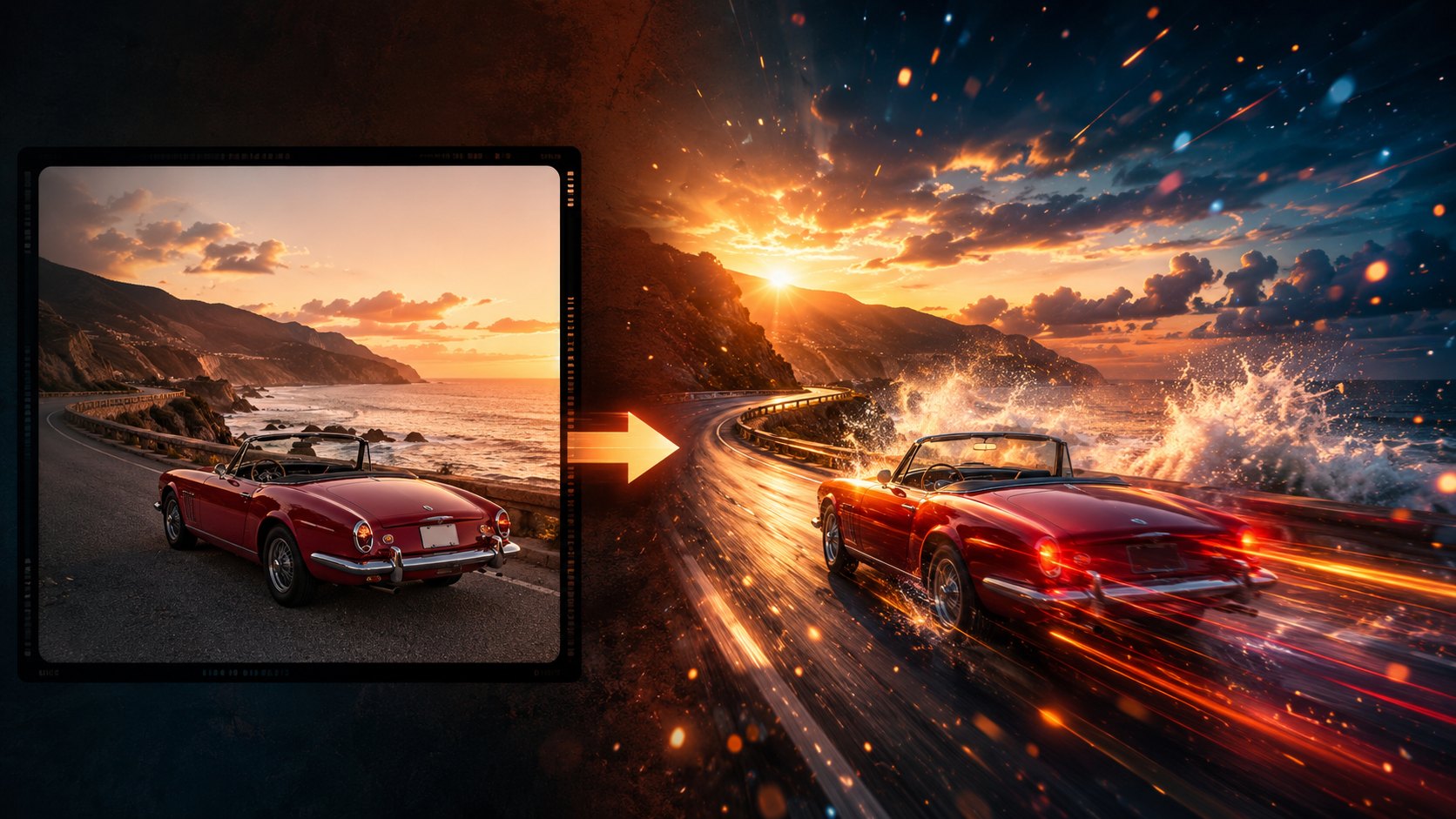
Image-to-video sounds like complicated video production, but the core workflow is really just five steps. Here's the short version first:
- Pick an image with a clear subject and room to move
- Decide what should move — camera, subject, or environment. One main motion
- Write the prompt with a formula: subject + action + style + camera + light + lock
- Generate an 8-second preview and check whether the motion feels natural
- If something's off, change one variable and regenerate
Everything below is from real tests, not theory. I ran the full loop on VidLux — choosing images, generating, breaking things, and fixing them — across four cases that cover the most common image-to-video scenarios: a car, a portrait, a landscape, and a character transformation.
Step 1: Pick an image that can move
Not every image works for image-to-video. AI can add motion, but it's good at "making a sensible image move", not at "fixing a broken image".
The two test images I used here were both made with VidLux's image generation model:
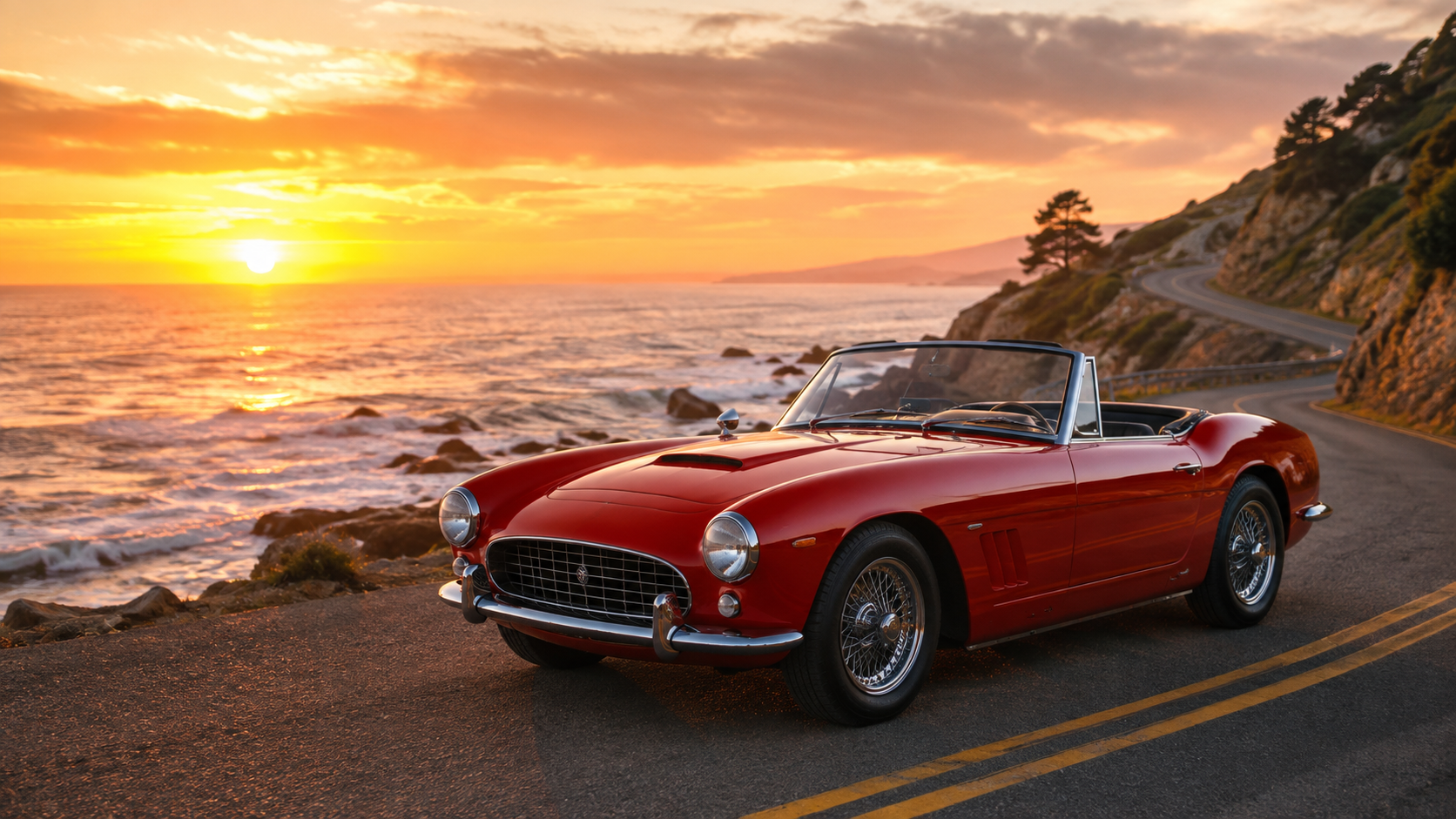
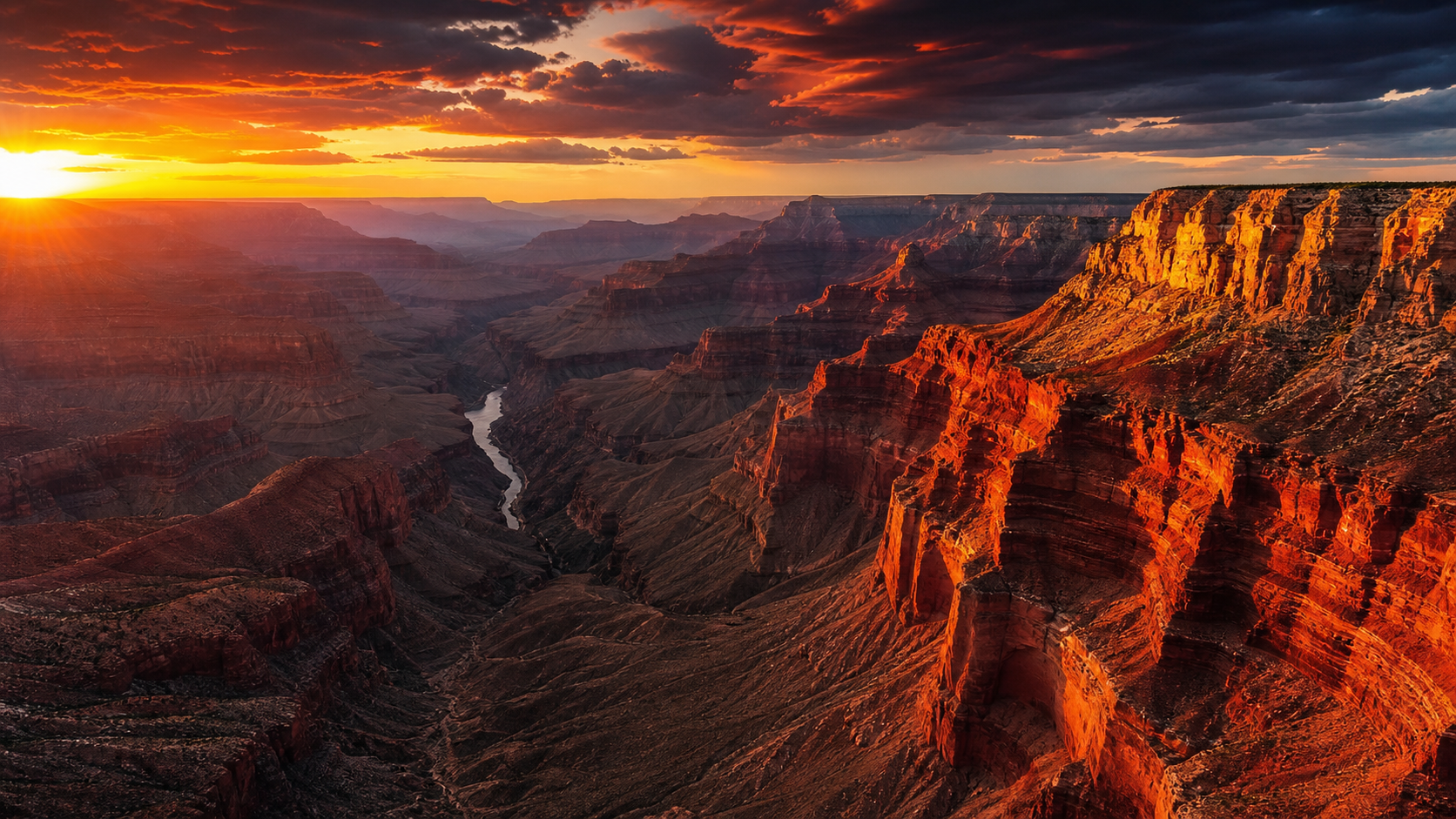
Three things to check when choosing an image:
- Clear subject, uncluttered frame. If the image is packed with stuff, the model can't decide what to move.
- Room around the subject. Push-ins and pans need negative space — the car's road and the canyon's sky are exactly that.
- Nothing already broken. If hands, faces, text, or car lines are distorted in the still, they'll only get worse in motion.
A practical self-test: can you imagine what this image would do in the next two seconds? If yes, the AI probably can too. If not, the image has no clear direction of motion.
Step 2: Decide what should move
Most image-to-video failures aren't the model's fault — they come from prompts that ask for too much. Motion falls into three types; one main motion, everything else restrained:
| Type | Examples | Best for |
|---|---|---|
| Camera motion | slow zoom in, pan left, orbit, tracking shot | Portraits, products, landscapes — the safest choice |
| Subject motion | car accelerating, blink, turn head, hair moving | Strong impact, but the most error-prone |
| Environment motion | clouds drifting, fog clearing, water ripples, light shifting | When you want atmosphere without touching the subject |
Step 3: Write the prompt with a formula
Based on Google's official prompt guidance for Veo, here's a formula that works for image-to-video:
subject (who) + action (what) + style (look) + camera (how) + lighting (atmosphere) + lock (what must not change)
Here's the full prompt from the sports car case:
View the sports car prompt
The red convertible car on the coastal road accelerates forward along the winding cliffside, engine roaring as it picks up speed. Cinematic car commercial style. Low-angle tracking shot following the car, camera gliding alongside at road level. Shallow depth of field on the car, background cliffs and ocean softly blurred. Warm golden-hour light, ocean sparkle, dramatic orange sky. Keep the car's shape, color and the coastal road position consistent with the source image. No cuts, no text, no logos.
Broken down:
- Subject: the red convertible car
- Action: accelerates forward along the winding cliffside
- Style: Cinematic car commercial style
- Camera: Low-angle tracking shot, camera gliding alongside
- Lighting: Warm golden-hour light, ocean sparkle
- Lock: Keep the car's shape, color and road position consistent with the source image
That last sentence is the key difference from text-to-video: image-to-video must lock in source consistency. The image is the anchor — the prompt adds motion on top of it, it doesn't re-imagine the scene.
Prompt templates for different image types
The same formula, applied to different subjects. Templates you can adapt directly:
Portrait template
The woman in the portrait blinks naturally and turns her head slightly, hair moving gently. Cinematic portrait style. Slow push-in, shallow depth of field. Soft natural light. Keep her face, hairstyle and clothing consistent with the source image. No cuts, no text.
Product template
The product on the clean surface stays still while the camera slowly orbits and a soft light sweeps across its edges. Premium commercial style. Keep the product shape, logo and label unchanged. No hands, no new objects, no text.
Landscape template
The camera gently moves forward through the landscape as clouds drift and light shifts across the ground. Documentary nature style. Keep the composition natural. No people, no text.
Illustration / anime template
Subtle camera push-in, hair and clothing sway slightly as if in a light breeze. Keep the original art style and character design unchanged. No text.
The common thread: one main motion + style + light + source lock. Portraits and products get an extra lock (face/logo must not change); landscapes and illustrations win by restraint.
Step 4: Generate, then look at the data (not just the feel)
I generated an 8-second version of the car with Veo 3.1 Fast. Consistent 8s, 720p, 16:9:
After generating, I did two things: watched the footage and checked the numbers. The numbers come from frame-by-frame analysis (average pixel difference between frames) — more objective than "feels right":
| Metric | Value | What it means |
|---|---|---|
| Motion level (mean) | 8.2 | Clear movement, matches "car driving" |
| Rhythm (4 segments) | 7.7 → 12.9 → 6.3 → 6.0 | Mid-segment peak 12.9 = the acceleration moment |
Motion spikes to 12.9 in the second segment (the car accelerates), calm before and after — the "accelerates" in the prompt was executed correctly.
Same approach with the Grand Canyon (Kling 3.0 Turbo):
The canyon version is more restrained (mean 2.4) — clouds and light shift slowly, which fits the "environment motion" category. For landscapes, environment motion is steadier than big action.
Portrait case: subtle street-portrait motion
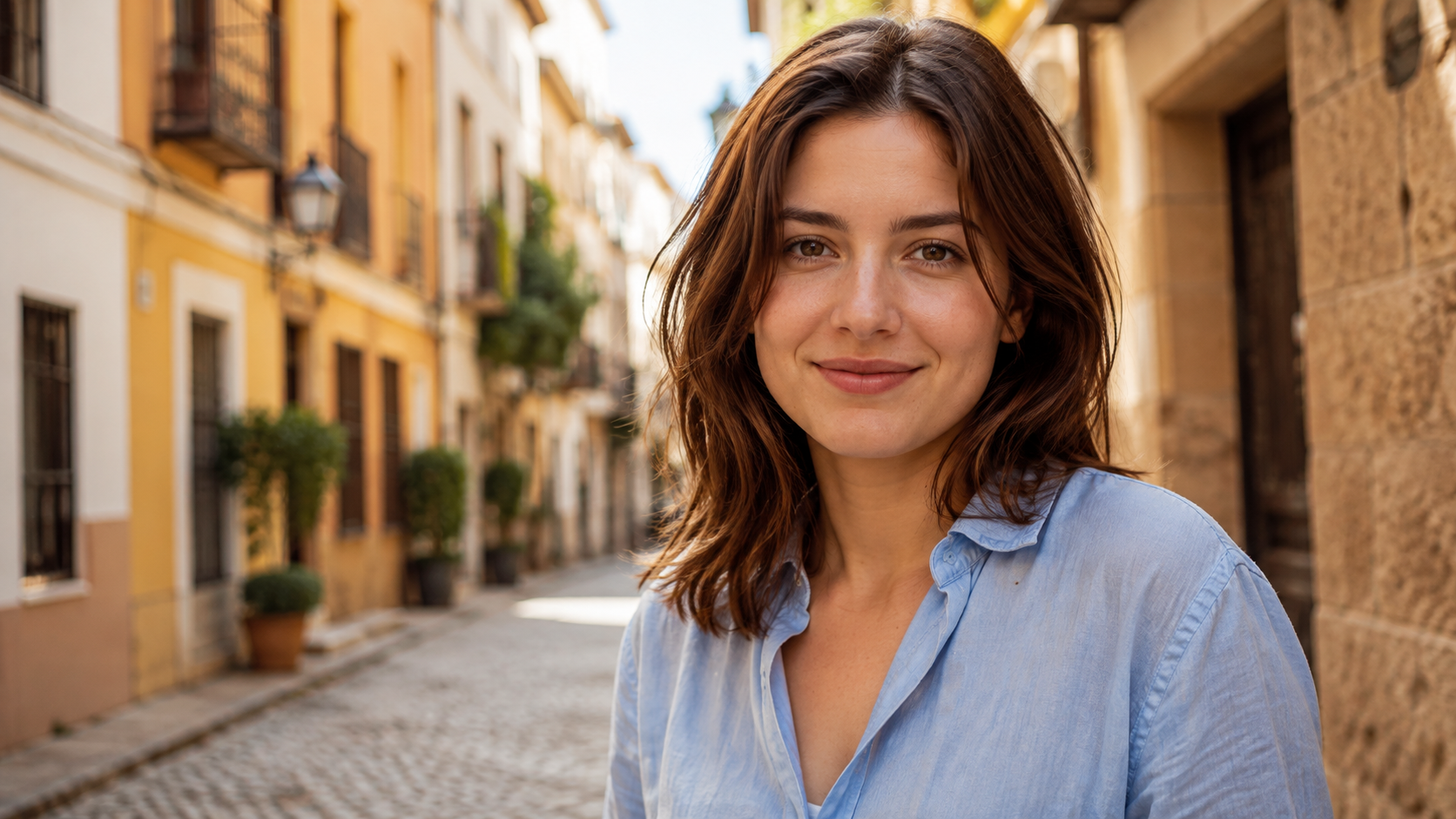
Portrait image-to-video is the most common use — and the most failure-prone. The key is locking the face. Here's the street portrait I tested with:
View the portrait prompt
The young woman in the light blue linen shirt looks at the camera, blinks naturally and turns her head slightly with a gentle smile, hair moving softly in a light breeze. Cinematic portrait style. Slow push-in, shallow depth of field. Warm afternoon sunlight. Keep her face, hairstyle, shirt and the street background consistent with the source image. No cuts, no text, no logos.
Portrait takeaways:
- The lighter the motion, the safer. Just "blink + slight head turn" — no big movements. Once the face moves hard, it breaks.
- The lock sentence is everything.
Keep her face, hairstyle, shirt and the street background consistentdecides whether the face stays. - Slow push-in beats orbit. Orbiting around a person tends to distort; a slow push-in is the most stable choice.
Frame-by-frame check afterward: face intact, hair and shirt consistent — that's portrait image-to-video done right.
Step 5: The mistake I made — asking for too much
To test what "prompt overload" does, I deliberately wrote a wild prompt: spin in circles, drift, drive off the cliff, do a barrel roll mid-air, land backwards, then accelerate wildly while the camera orbits frantically.
The numbers tell the story:
| Metric | Normal prompt | Overloaded prompt |
|---|---|---|
| Motion level (mean) | 8.2 | 12.7 |
| Motion peak | 16.8 | 26.0 |
The visual is even clearer: the car literally flies — off the ground, hovering in the air. A single frame might pass as a stunt shot, but the whole clip is the car repeatedly launching, tumbling and careening out of control. No trace of the coastal-road feel.
This is the classic symptom of asking for too much: the subject does physically impossible things. Rule of thumb: a normal "one action + camera motion" prompt lands in single digits to low teens; if the subject takes off, flips or teleports, you've overloaded the prompt.
Step 6: How I fixed it (the real process)
The fix in one sentence: cut the extra actions, keep one. I trimmed "spin, drift, cliff dive, roll, reverse, spin camera" down to "smooth acceleration along the road":
View the fixed prompt
The red convertible car accelerates smoothly forward along the coastal road, engine revving gently. Cinematic car commercial style. Low-angle tracking shot, camera gliding alongside. Shallow depth of field, warm golden-hour light. Keep the car's shape, color and road position consistent with the source image. No cuts, no text, no logos.
The fix principle: change one variable at a time. If the direction is right, adjust one detail and regenerate; if the direction is wrong, rewrite the action description — don't pile on adjectives.
The numbers back it up: motion dropped from 12.7 to 3.4 (about a quarter), peak from 26.0 to 5.8 — the car stays on the road, and the coastal-road feel is back.
Checklist: what to look at after generating
Check in this order and you won't miss much:
- Did the subject hold? (Same car? Same person?)
- Did the details break? (Wheels, hands, logo, text — the usual suspects)
- Did the background warp?
- Did anything appear out of nowhere?
- Is the motion rhythm right? ("Slow push-in" shouldn't feel like a rollercoaster)
When you spot a problem, name it directly in the next prompt and fix one thing at a time. For a warped car body, add Keep the car shape unchanged.
When to regenerate instead of editing
This call saves you a lot of time:
- Regenerate: the core motion is wrong (face changed too much, body warped, subject did the impossible) — don't waste time editing, simplify the prompt and rerun
- Edit: the footage is basically right, just needs polish (trim the dead frames at both ends, grade, add music and captions)
Editing can't save a bad generation, but it makes a good one complete.
After export: finishing touches
Once the generation is right, a few steps make the final clip more polished:
- Trim the dead frames. AI clips often have 1-2 stutter or ghost frames at the start and end; cutting them is the safest move
- Add music and captions. Almost essential for social — music masks audio artifacts, captions make it watchable without sound
- Crop per platform. Vertical (Reels/TikTok) is 9:16, feed is 1:1, web/landscape is 16:9. Generate landscape first, then crop — you keep more composition options than generating vertical directly
- Grade for consistency. If you're stitching multiple clips, unify the color so the whole piece feels continuous
Advanced: frames to video — transformation in practice
A single image gives you one shot. For "from state A to state B" content, use frames to video (first-and-last-frame): give the model a "start frame" and an "end frame", and it fills in the middle.
I tested it with a character transformation — the same woman, from casual blue-shirt form to sci-fi armored form (the classic frames to video use case):
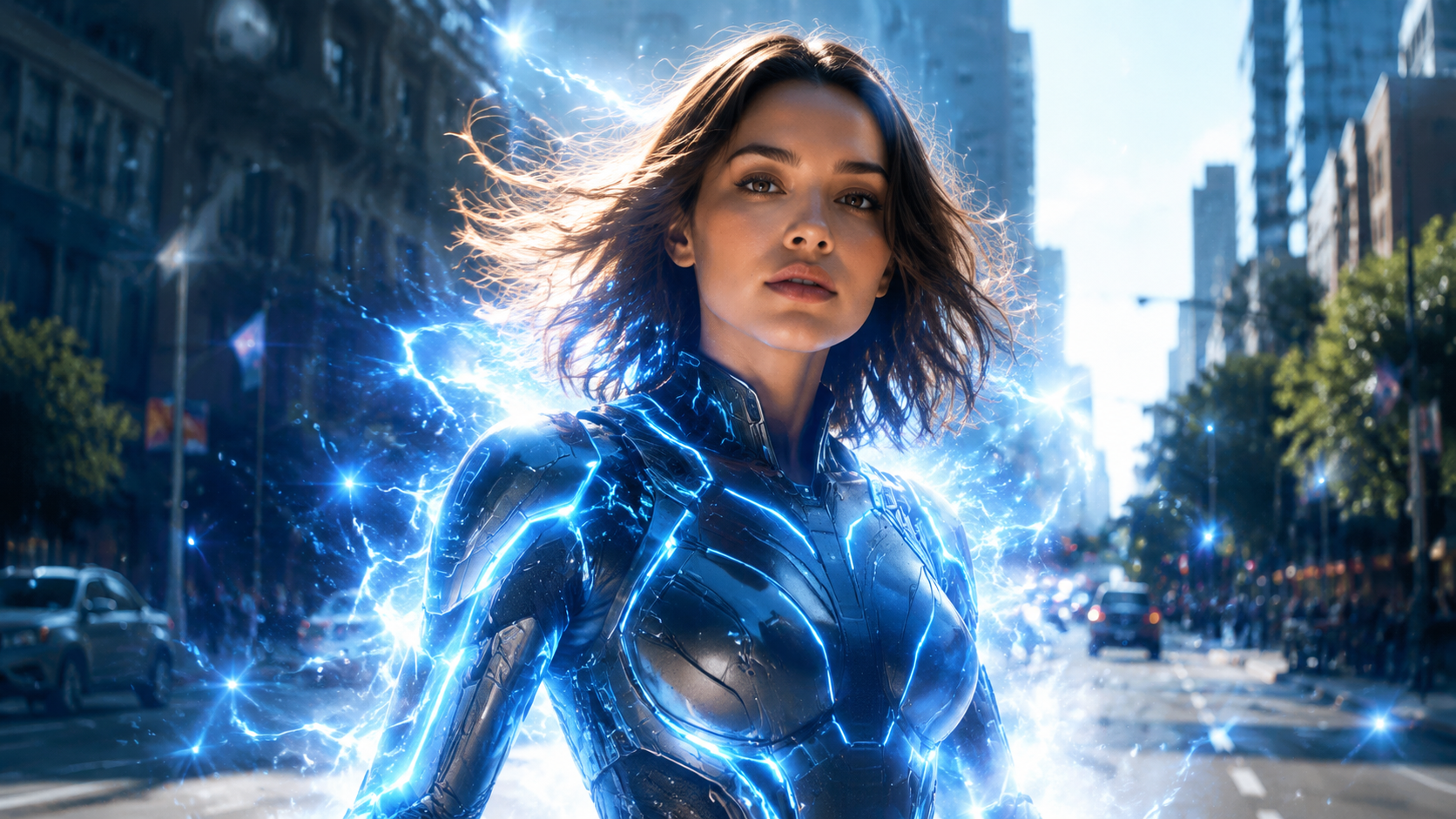
View the frames to video prompt
The young woman in the light blue linen shirt transforms into her sci-fi armored form: a flash of blue energy sweeps over her body, the high-tech suit with glowing energy lines materializes over her clothes, her hair lifts with static energy, and she raises her head with a determined expression. Smooth, cinematic transformation, consistent face throughout. No cuts, no text, no logos.
The result: frame 1 is the casual blue shirt, the last frame is the full sci-fi armor, and the energy sweep, costume change and hair lift all connect naturally in between — the face never changes. The transformation adds layers rather than replacing the person.
Good frames to video use cases:
- Transformations / outfit changes: casual → combat form, no-makeup → full makeup, old outfit → new outfit
- Product state changes: closed → open, empty → full
- Scene time shifts: day → night, sunny → rainy
The difference from single-image-to-video: image-to-video makes "this image move", frames to video makes "this image become that image" — the model fills in the process.
Advanced: stitching multiple images
Another way to make longer content: generate a short clip from each image, then stitch them in an editor. A few clean short clips beat one long flawed video — that's how most social content is made. VidLux's frames to video handles single-shot state changes; multi-shot storytelling is done by stitching.
Troubleshooting table
| Symptom | Cause | Fix |
|---|---|---|
| Face/car body warped | Motion too strong, or the source image itself is flawed | Simplify the action + strengthen the lock |
| Extra hands/wheels | Details get redrawn during motion | Add Keep hands natural, lighten the motion |
| Subject floats/teleports | The prompt asked for physically impossible actions | Cut anything that breaks physics |
| Background warps | Background too complex, model misreads it | Use a simpler background, or add Keep background unchanged |
| Motion too wild | Too many actions packed in | Keep one main motion |
| Barely moves | Prompt too timid | Make "slow/camera move" more explicit |
Good use cases for image-to-video
- Social content: travel photos, outfit shots, food pics — a slow push-in brings them alive. Don't overdo it; one motion is enough
- Product marketing: product images become short ads (pan, light sweep). Be extra careful with product shots — logo, label and bottle lines must not move
- Personal memories: old photos with gentle motion (slow camera move, soft blink). The blurrier the old photo, the lighter the motion
- Creative concepts: mood boards, character designs, game scenes — quickly see what a scene feels like in motion
What AI image-to-video still can't do
Honest limitations:
- The bigger the motion, the less control. Faces, hands, logos and text break first when a prompt demands too much
- It doesn't know "what happened before". Image-to-video starts from this image — it doesn't continue from the previous second
- Copyright doesn't disappear. Use your own images or licensed ones; turning an image into video doesn't grant you rights to it
- The practical rule: pick the most usable result, not the flashiest. If the core identity changed, regenerate
FAQ
Q: What's the difference between image-to-video and text-to-video? Text-to-video generates from nothing; image-to-video adds motion on top of your image. Image-to-video keeps the subject you want (your person, product, scene), but with less motion freedom.
Q: How long should I generate at first? Start with 8 seconds. It's enough to see the direction without amplifying problems. For short social clips, a clean 3 seconds beats a flawed 8 seconds.
Q: Can I reuse the same image? Yes. Change the prompt or the model and the same input image gives completely different results. That's the time-saving part of image-to-video — one good image, many versions.
The full workflow (5-step recap)
- Choose the image: clear subject, room to move, a direction you can imagine
- Decide the motion: camera / subject / environment — one main motion
- Write the prompt: subject + action + style + camera + light + source lock
- Generate and check: look at motion data + scan subject and details frame by frame
- Fix: change one variable at a time, regenerate
One last thought: restraint beats flashiness in image animation. A gentle, stable motion always beats an "everything moves" version that loses control. Want big action? That's text-to-video's job — don't push a still image that far.
Try it now at VidLux image-to-video — upload an image, write a prompt with the formula above, and see the result in 8 seconds.