
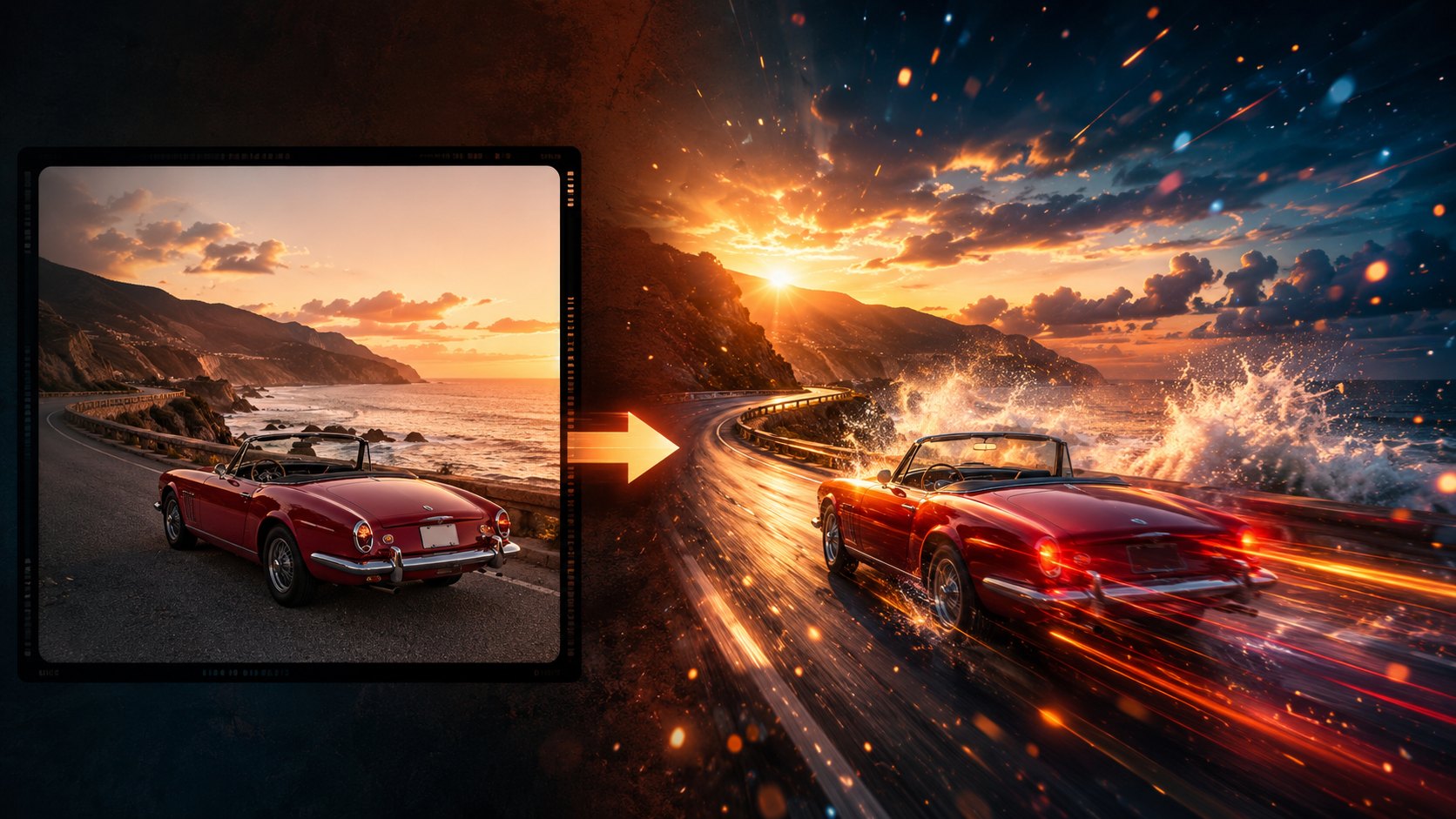
Image-to-video parece coisa de produção de vídeo complexa, mas o fluxo de trabalho essencial se resume a cinco etapas. Primeiro, a versão curta:
- Escolha uma imagem com um assunto claro e espaço para movimento
- Decida o que deve se mover — câmera, assunto ou ambiente. Um movimento principal
- Escreva o prompt com uma fórmula: assunto + ação + estilo + câmera + luz + trava
- Gere uma prévia de 8 segundos e verifique se o movimento parece natural
- Se algo estiver errado, mude uma variável e regenere
Tudo abaixo vem de testes reais, não de teoria. Rodei o ciclo completo no VidLux — escolhendo imagens, gerando, quebrando e corrigindo — em quatro casos que cobrem os cenários mais comuns de image-to-video: um carro, um retrato, uma paisagem e uma transformação de personagem.
Etapa 1: escolha uma imagem que possa se mover
Nem toda imagem serve para image-to-video. A IA consegue adicionar movimento, mas ela é boa em "fazer uma imagem coerente se mover", não em "consertar uma imagem problemática".
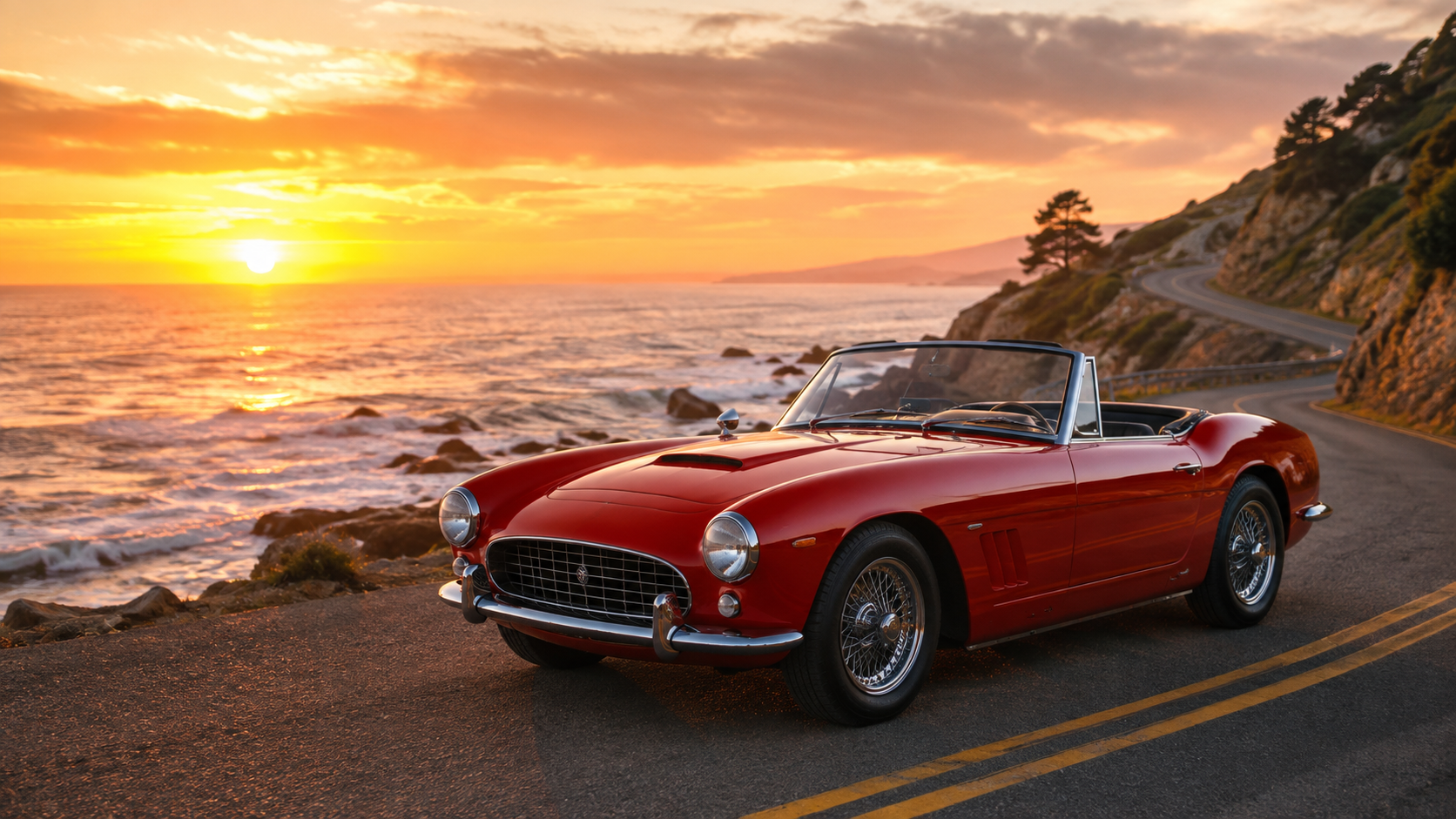
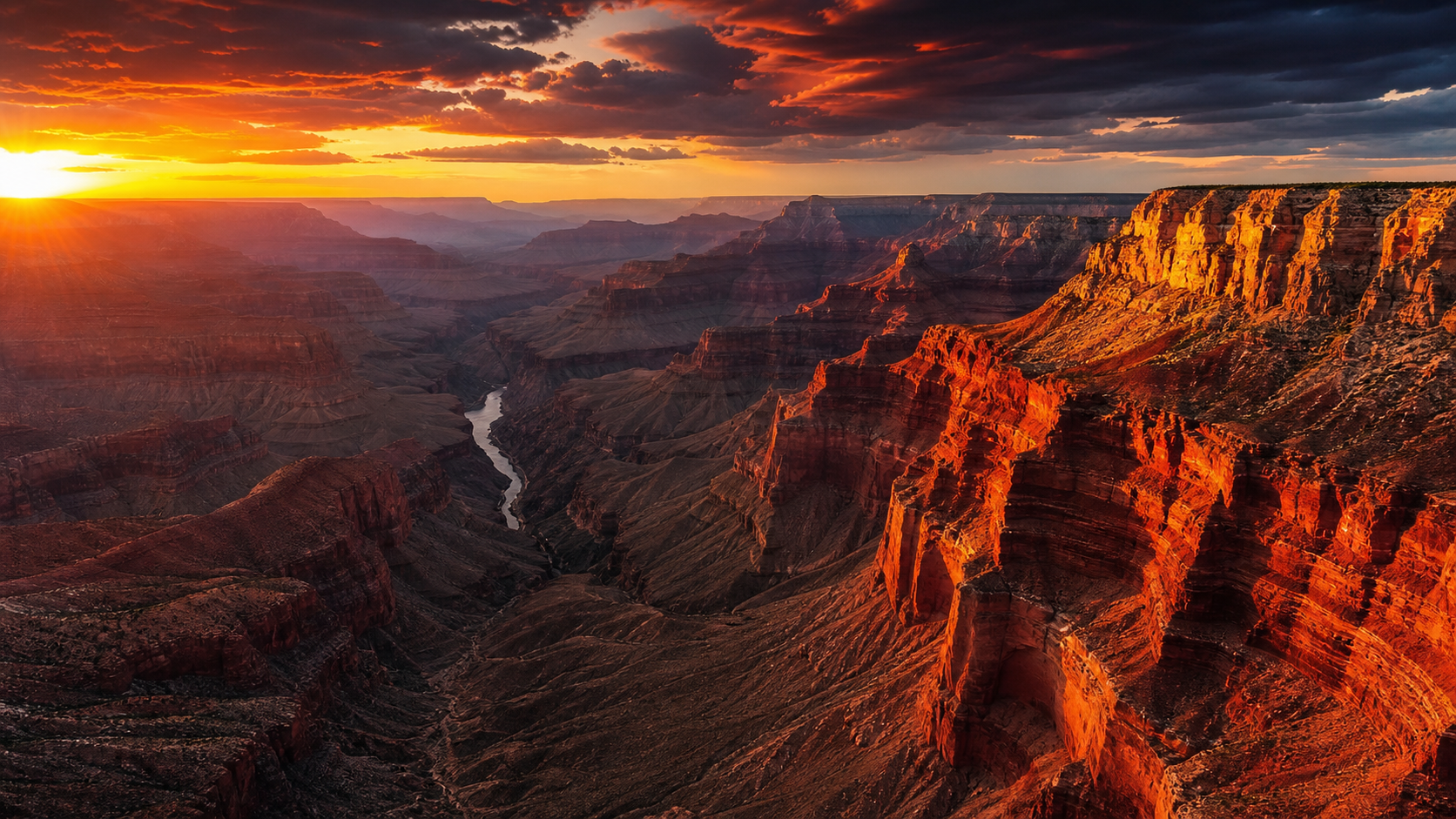
As duas imagens de teste que usei aqui foram geradas com o modelo de geração de imagem do VidLux:
Três pontos para verificar ao escolher uma imagem:
- Assunto claro, enquadramento limpo. Se a imagem está cheia de elementos, o modelo não consegue decidir o que mover.
- Espaço ao redor do assunto. Aproximações (push-in) e panorâmicas precisam de espaço negativo — a estrada do carro e o céu do cânion são exatamente isso.
- Nada já comprometido. Se mãos, rostos, textos ou as linhas do carro estão distorcidos na imagem parada, eles só tendem a piorar em movimento.
Um autoteste prático: você consegue imaginar o que essa imagem faria nos próximos dois segundos? Se sim, a IA provavelmente também consegue. Se não, a imagem não tem uma direção clara de movimento.
Etapa 2: decida o que deve se mover
A maioria das falhas de image-to-video não é culpa do modelo — elas vêm de prompts que pedem demais. O movimento se divide em três tipos; um movimento principal, com todo o resto contido:
| Tipo | Exemplos | Melhor para |
|---|---|---|
| Movimento de câmera | zoom lento, panorâmica à esquerda, órbita, travelling | Retratos, produtos e paisagens — a opção mais segura |
| Movimento do assunto | carro acelerando, piscar, virar a cabeça, cabelo se movendo | Grande impacto, mas é o que mais dá errado |
| Movimento de ambiente | nuvens à deriva, névoa se dissipando, ondulações na água, luz mudando | Quando você quer atmosfera sem mexer no assunto |
Etapa 3: escreva o prompt com uma fórmula
Com base nas orientações oficiais da Google para prompts do Veo, esta é uma fórmula que funciona para image-to-video:
assunto (quem) + ação (o quê) + estilo (aparência) + câmera (como) + iluminação (atmosfera) + trava (o que não pode mudar)
Este é o prompt completo do caso do esportivo:
Ver o prompt do esportivo
The red convertible car on the coastal road accelerates forward along the winding cliffside, engine roaring as it picks up speed. Cinematic car commercial style. Low-angle tracking shot following the car, camera gliding alongside at road level. Shallow depth of field on the car, background cliffs and ocean softly blurred. Warm golden-hour light, ocean sparkle, dramatic orange sky. Keep the car's shape, color and the coastal road position consistent with the source image. No cuts, no text, no logos.
Detalhando:
- Assunto: the red convertible car
- Ação: accelerates forward along the winding cliffside
- Estilo: Cinematic car commercial style
- Câmera: Low-angle tracking shot, camera gliding alongside
- Iluminação: Warm golden-hour light, ocean sparkle
- Trava: Keep the car's shape, color and road position consistent with the source image
Essa última frase é a principal diferença em relação ao text-to-video: no image-to-video, a consistência com a imagem de origem precisa ser travada. A imagem é a âncora — o prompt adiciona movimento por cima dela, não recria a cena.
Modelos de prompt para diferentes tipos de imagem
A mesma fórmula, aplicada a diferentes assuntos. Modelos que você pode adaptar direto:
Modelo para retrato
The woman in the portrait blinks naturally and turns her head slightly, hair moving gently. Cinematic portrait style. Slow push-in, shallow depth of field. Soft natural light. Keep her face, hairstyle and clothing consistent with the source image. No cuts, no text.
Modelo para produto
The product on the clean surface stays still while the camera slowly orbits and a soft light sweeps across its edges. Premium commercial style. Keep the product shape, logo and label unchanged. No hands, no new objects, no text.
Modelo para paisagem
The camera gently moves forward through the landscape as clouds drift and light shifts across the ground. Documentary nature style. Keep the composition natural. No people, no text.
Modelo para ilustração / anime
Subtle camera push-in, hair and clothing sway slightly as if in a light breeze. Keep the original art style and character design unchanged. No text.
O fio condutor: um movimento principal + estilo + luz + trava da imagem de origem. Retratos e produtos ganham uma trava extra (rosto/logotipo não podem mudar); paisagens e ilustrações vencem pela contenção.
Etapa 4: gere e depois olhe os dados (não só a sensação)
Gerei uma versão de 8 segundos do carro com o Veo 3.1 Fast. Padrão: 8s, 720p, 16:9:
Depois de gerar, fiz duas coisas: assisti ao material e conferi os números. Os números vêm de uma análise quadro a quadro (diferença média de pixels entre quadros) — algo mais objetivo do que "parece certo":
| Métrica | Valor | O que significa |
|---|---|---|
| Nível de movimento (média) | 8.2 | Movimento claro, condiz com "carro em movimento" |
| Ritmo (4 segmentos) | 7.7 → 12.9 → 6.3 → 6.0 | Pico de 12.9 no segmento do meio = o momento da aceleração |
O movimento dispara para 12.9 no segundo segmento (o carro acelera), com calma antes e depois — o "accelerates" do prompt foi executado corretamente.
A mesma abordagem com o Grand Canyon (Kling 3.0 Turbo):
A versão do cânion é mais contida (média 2.4) — nuvens e luz mudam devagar, o que se encaixa na categoria "movimento de ambiente". Para paisagens, o movimento de ambiente é mais estável do que grandes ações.
Caso retrato: movimento sutil de retrato de rua
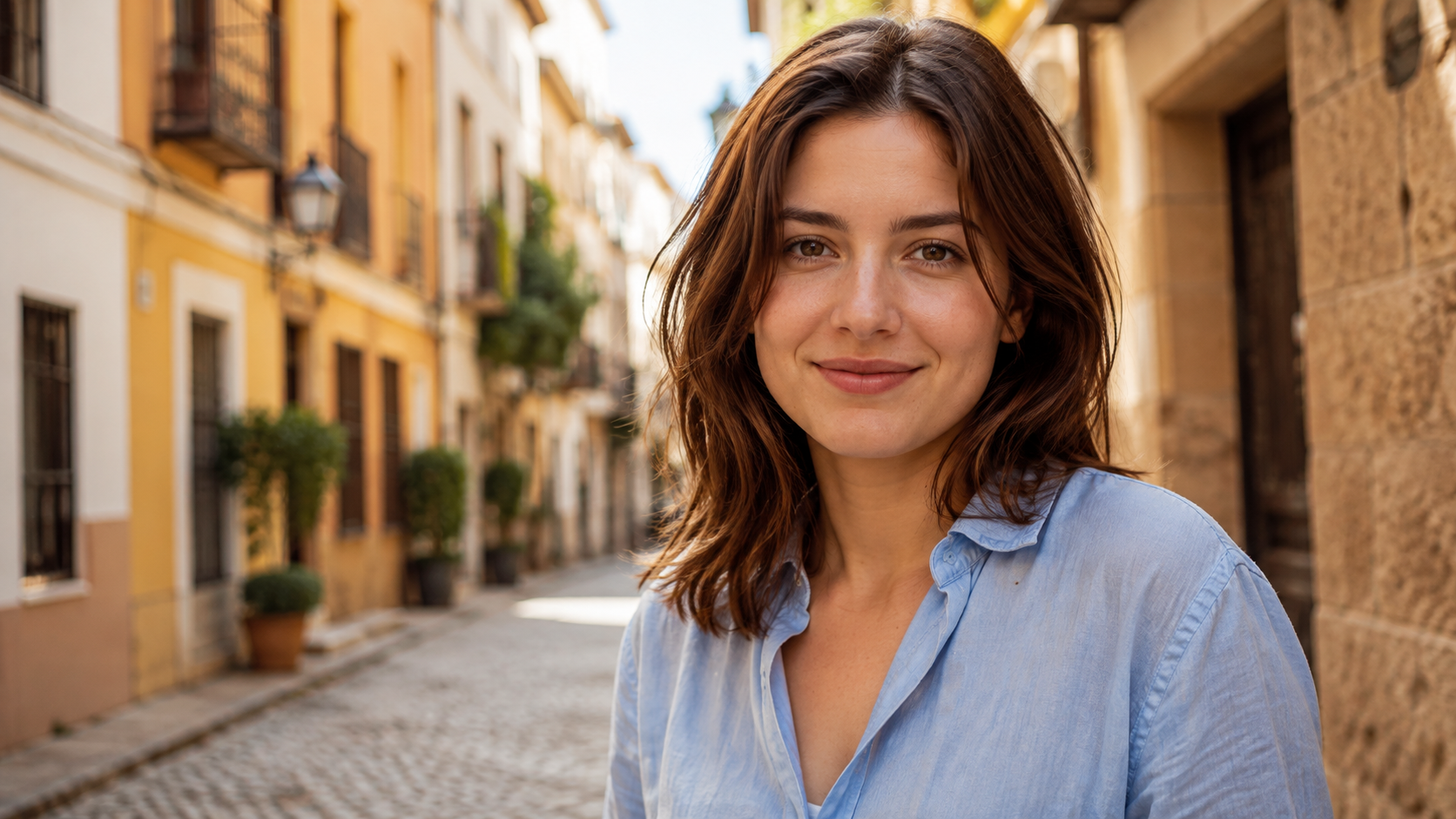
Image-to-video de retrato é o uso mais comum — e o que mais falha. A chave é travar o rosto. Este é o retrato de rua com que testei:
Ver o prompt do retrato
The young woman in the light blue linen shirt looks at the camera, blinks naturally and turns her head slightly with a gentle smile, hair moving softly in a light breeze. Cinematic portrait style. Slow push-in, shallow depth of field. Warm afternoon sunlight. Keep her face, hairstyle, shirt and the street background consistent with the source image. No cuts, no text, no logos.
Lições do caso de retrato:
- Quanto mais leve o movimento, mais seguro. Apenas "piscar + leve giro de cabeça" — nada de grandes movimentos. Quando o rosto se mexe com força, ele quebra.
- A frase de trava é tudo.
Keep her face, hairstyle, shirt and the street background consistentdecide se o rosto permanece. - Aproximação lenta vence a órbita. Orbitar ao redor de uma pessoa tende a distorcer; uma aproximação lenta (slow push-in) é a opção mais estável.
Depois, a verificação quadro a quadro: rosto intacto, cabelo e camisa consistentes — é assim que se faz image-to-video de retrato do jeito certo.
Etapa 5: o erro que cometi — pedir demais
Para testar o efeito da "sobrecarga de prompt", escrevi de propósito um prompt absurdo: girar em círculos, derrapar, cair do penhasco, dar um barrel roll no ar, aterrissar de ré e acelerar descontroladamente enquanto a câmera orbita sem parar.
Os números contam a história:
| Métrica | Prompt normal | Prompt sobrecarregado |
|---|---|---|
| Nível de movimento (média) | 8.2 | 12.7 |
| Pico de movimento | 16.8 | 26.0 |
O visual é ainda mais claro: o carro literalmente voa — sai do chão e fica pairando no ar. Um único quadro até poderia passar por cena de dublê, mas o clipe inteiro mostra o carro decolando, capotando e saindo do controle repetidamente. Nenhum traço da estrada litorânea.
Este é o sintoma clássico de pedir demais: o assunto faz coisas fisicamente impossíveis. Regra prática: um prompt normal de "uma ação + movimento de câmera" fica entre um dígito e o início da casa dos 10; se o assunto decola, dá cambalhotas ou teletransporta, o prompt está sobrecarregado.
Etapa 6: como corrigi (o processo real)
A correção em uma frase: corte as ações extras, fique com uma. Reduzi "girar, derrapar, mergulho no penhasco, rolar, dar ré, girar a câmera" para "aceleração suave ao longo da estrada":
Ver o prompt corrigido
The red convertible car accelerates smoothly forward along the coastal road, engine revving gently. Cinematic car commercial style. Low-angle tracking shot, camera gliding alongside. Shallow depth of field, warm golden-hour light. Keep the car's shape, color and road position consistent with the source image. No cuts, no text, no logos.
O princípio da correção: mude uma variável por vez. Se a direção está certa, ajuste um detalhe e regenere; se a direção está errada, reescreva a descrição da ação — não empilhe adjetivos.
Os números confirmam: o movimento caiu de 12.7 para 3.4 (cerca de um quarto), e o pico de 26.0 para 5.8 — o carro permanece na estrada, e a sensação da estrada litorânea voltou.
Checklist: o que verificar depois de gerar
Verifique nesta ordem e você não vai perder quase nada:
- O assunto se manteve? (O mesmo carro? A mesma pessoa?)
- Os detalhes quebraram? (Rodas, mãos, logotipo, texto — os suspeitos de sempre)
- O fundo distorceu?
- Alguma coisa apareceu do nada?
- O ritmo do movimento está certo? (Uma "aproximação lenta" não deveria parecer uma montanha-russa)
Ao identificar um problema, nomeie-o diretamente no próximo prompt e corrija uma coisa por vez. Para uma carroceria distorcida, adicione Keep the car shape unchanged.
Quando regenerar em vez de editar
Essa decisão economiza muito tempo:
- Regenere: o movimento central está errado (rosto mudou demais, corpo distorcido, o assunto fez o impossível) — não perca tempo editando, simplifique o prompt e rode de novo
- Edite: o material está basicamente certo, só precisa de acabamento (cortar os quadros mortos nas pontas, fazer a correção de cor, adicionar música e legendas)
A edição não salva uma geração ruim, mas completa uma boa.
Depois da exportação: os retoques finais
Quando a geração está certa, alguns passos deixam o clipe final mais polido:
- Corte os quadros mortos. Clipes de IA costumam ter 1-2 quadros com travadas ou fantasmas no início e no fim; cortá-los é a jogada mais segura
- Adicione música e legendas. Quase essencial para redes sociais — a música mascara artefatos de áudio e as legendas tornam o vídeo assistível sem som
- Corte por plataforma. Vertical (Reels/TikTok) é 9:16, feed é 1:1, web/landscape é 16:9. Gere em landscape primeiro e corte depois — você mantém mais opções de composição do que gerando direto no vertical
- Uniformize a cor. Se você está emendando vários clipes, unifique a cor para que o conjunto pareça contínuo
Avançado: frames to video — transformação na prática
Uma única imagem dá um take só. Para conteúdo do tipo "do estado A ao estado B", use frames to video (primeiro e último quadro): dê ao modelo um "quadro inicial" e um "quadro final", e ele preenche o meio.
Testei com uma transformação de personagem — a mesma mulher, da forma casual de camisa azul para a forma blindada de ficção científica (o caso de uso clássico de frames to video):
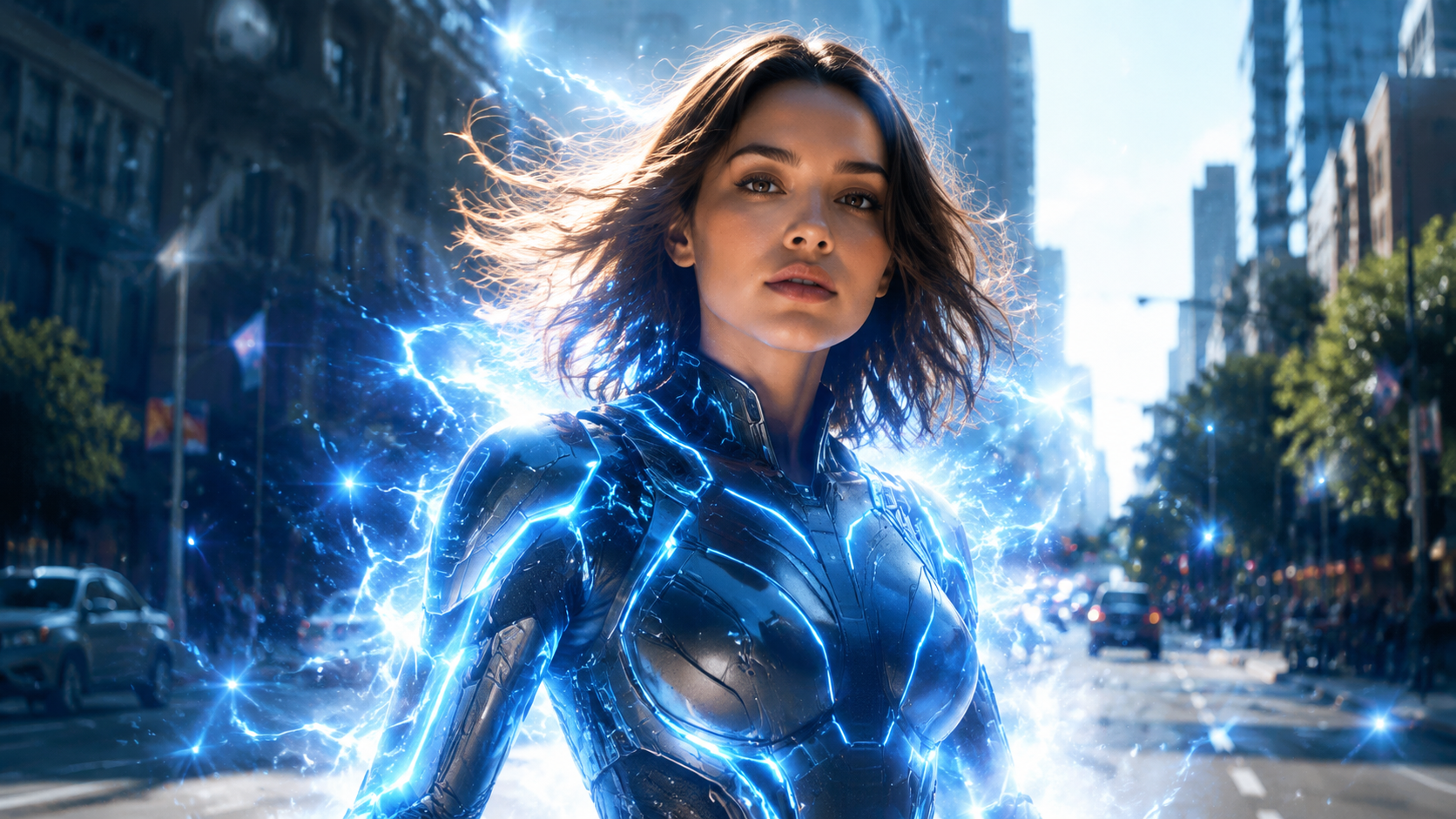
Ver o prompt de frames to video
The young woman in the light blue linen shirt transforms into her sci-fi armored form: a flash of blue energy sweeps over her body, the high-tech suit with glowing energy lines materializes over her clothes, her hair lifts with static energy, and she raises her head with a determined expression. Smooth, cinematic transformation, consistent face throughout. No cuts, no text, no logos.
O resultado: o quadro 1 é a camisa azul casual, o último quadro é a armadura sci-fi completa, e a onda de energia, a troca de figurino e o cabelo erguendo se conectam naturalmente no meio — o rosto nunca muda. A transformação adiciona camadas em vez de substituir a pessoa.
Bons casos de uso para frames to video:
- Transformações / trocas de figurino: casual → forma de combate, sem maquiagem → maquiagem completa, roupa antiga → roupa nova
- Mudanças de estado do produto: fechado → aberto, vazio → cheio
- Mudanças de tempo na cena: dia → noite, ensolarado → chuvoso
A diferença em relação ao image-to-video de imagem única: image-to-video faz "esta imagem se mover", frames to video faz "esta imagem se tornar aquela imagem" — o modelo preenche o processo.
Avançado: emendando várias imagens
Outra forma de criar conteúdo mais longo: gere um clipe curto de cada imagem e emende-os em um editor. Alguns clipes curtos e limpos vencem um vídeo longo com defeitos — é assim que a maior parte do conteúdo de redes sociais é feita. O frames to video do VidLux cuida de mudanças de estado em um único take; a narrativa multi-cena é feita com a emenda.
Tabela de solução de problemas
| Sintoma | Causa | Correção |
|---|---|---|
| Rosto/carroceria do carro distorcidos | Movimento forte demais, ou a própria imagem de origem tem defeitos | Simplifique a ação + reforce a trava |
| Mãos/rodas extras | Os detalhes são redesenhados durante o movimento | Adicione Keep hands natural, alivie o movimento |
| Assunto flutua/teletransporta | O prompt pediu ações fisicamente impossíveis | Corte tudo o que viola a física |
| Fundo distorce | Fundo complexo demais, o modelo o interpreta mal | Use um fundo mais simples, ou adicione Keep background unchanged |
| Movimento selvagem demais | Ações demais empilhadas | Mantenha um único movimento principal |
| Quase não se move | Prompt tímido demais | Torne o "slow/camera move" mais explícito |
Bons casos de uso para image-to-video
- Conteúdo para redes sociais: fotos de viagem, looks, fotos de comida — uma aproximação lenta dá vida a elas. Não exagere; um movimento basta
- Marketing de produto: imagens de produto viram anúncios curtos (panorâmica, varredura de luz). Tenha cuidado redobrado com fotos de produto — logotipo, rótulo e as linhas da embalagem não podem se mover
- Memórias pessoais: fotos antigas com movimento suave (movimento lento de câmera, piscar suave). Quanto mais borrada a foto antiga, mais leve o movimento
- Conceitos criativos: mood boards, design de personagens, cenas de jogos — veja rapidamente como uma cena fica em movimento
O que o image-to-video de IA ainda não consegue fazer
Limitações honestas:
- Quanto maior o movimento, menor o controle. Rostos, mãos, logotipos e texto quebram primeiro quando o prompt exige demais
- Ela não sabe "o que aconteceu antes". Image-to-video parte desta imagem — não continua do segundo anterior
- O direito autoral não desaparece. Use suas próprias imagens ou imagens licenciadas; transformar uma imagem em vídeo não te dá direitos sobre ela
- A regra prática: escolha o resultado mais utilizável, não o mais chamativo. Se a identidade central mudou, regenere
Perguntas frequentes
P: Qual é a diferença entre image-to-video e text-to-video? Text-to-video gera do zero; image-to-video adiciona movimento por cima da sua imagem. Image-to-video mantém o assunto que você quer (sua pessoa, produto, cena), mas com menos liberdade de movimento.
P: Quanto tempo devo gerar no início? Comece com 8 segundos. É suficiente para ver a direção sem amplificar problemas. Para clipes curtos de redes sociais, 3 segundos limpos vencem 8 segundos com defeitos.
P: Posso reutilizar a mesma imagem? Sim. Mude o prompt ou o modelo e a mesma imagem de entrada gera resultados completamente diferentes. Essa é a parte que economiza tempo no image-to-video — uma boa imagem, várias versões.
O fluxo de trabalho completo (resumo das 5 etapas)
- Escolha a imagem: assunto claro, espaço para se mover, uma direção que você consiga imaginar
- Defina o movimento: câmera / assunto / ambiente — um movimento principal
- Escreva o prompt: assunto + ação + estilo + câmera + luz + trava da imagem de origem
- Gere e verifique: observe os dados de movimento + examine o assunto e os detalhes quadro a quadro
- Corrija: mude uma variável por vez e regenere
Uma última reflexão: na animação de imagens, a contenção vence o exibicionismo. Um movimento suave e estável sempre vence uma versão "tudo se move" que perde o controle. Quer ação de verdade? Essa é a função do text-to-video — não force uma imagem estática até esse ponto.
Experimente agora no image-to-video do VidLux — envie uma imagem, escreva um prompt com a fórmula acima e veja o resultado em 8 segundos.